Restoring Home Screen Icons on Android Devices
Restoring missing icons on your Android home screen can be frustrating, but it’s often a straightforward process. This guide will walk you through various methods to help you retrieve your icons, whether they’ve disappeared due to accidental deletion, app updates, or other issues. Understanding why icons might disappear can help you prevent future occurrences and keep your home screen organized for easy access to your favorite applications.
Restart Your Device
Sometimes, a simple restart can resolve temporary glitches that cause icons to disappear. When you restart your phone, the operating system refreshes itself, clearing out minor bugs that may have caused the issue. To restart your phone, press and hold the power button until the power menu appears, then select “Restart” or “Reboot.” This quick action can often restore missing icons without any additional steps. If you find that icons disappear frequently, consider making it a habit to restart your device periodically. This can help maintain optimal performance and reduce the likelihood of glitches affecting your home screen. Moreover, restarting your device can also free up RAM and close background applications that may be causing conflicts. If restarting doesn’t resolve the issue, you can move on to other troubleshooting methods to ensure your home screen remains functional.
Check the App Drawer
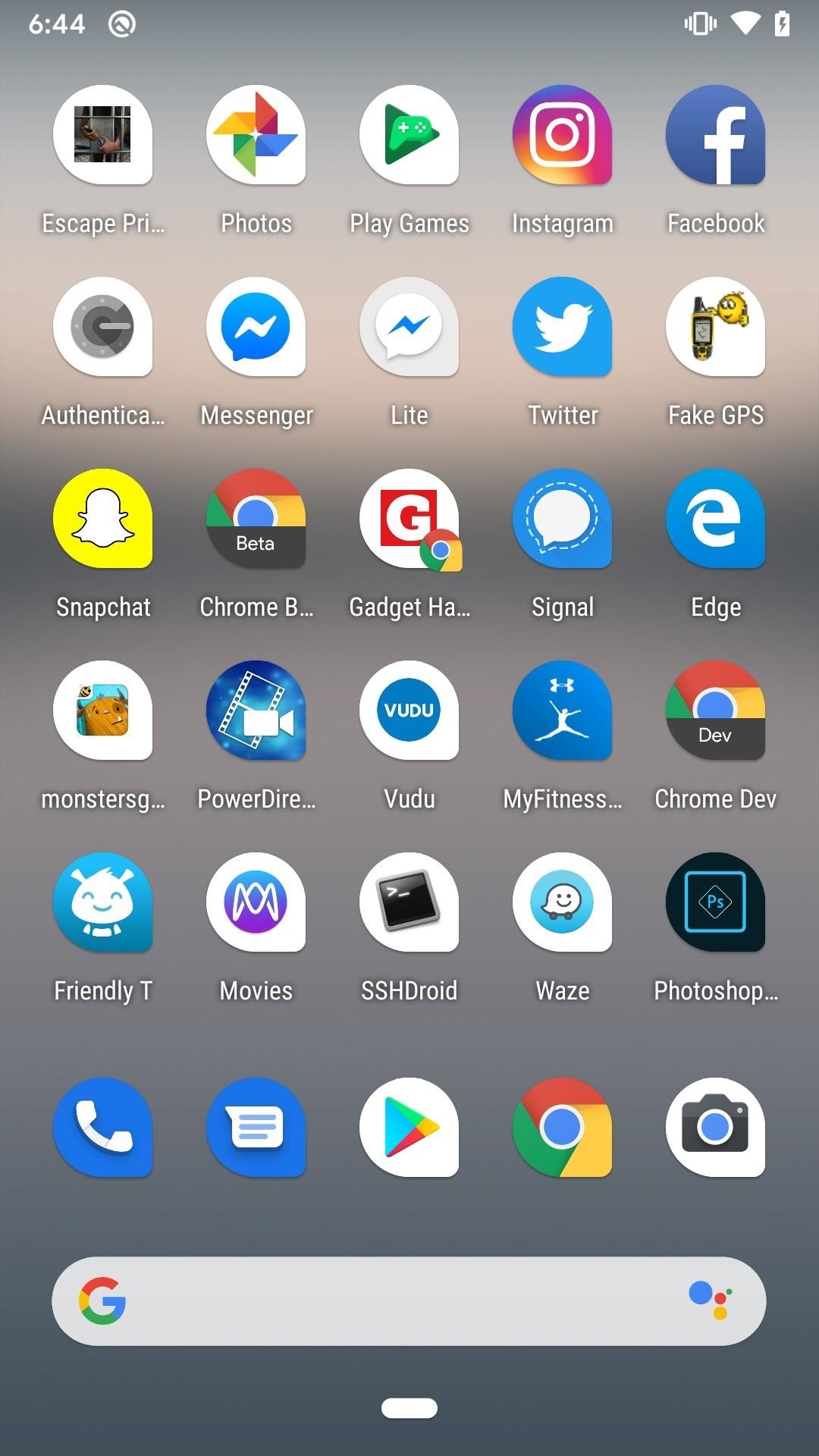
The app drawer is where all your installed apps reside, and it’s essential to check it when you notice missing icons. To access the app drawer, swipe up from the bottom of your home screen. It will display all the applications installed on your device, not just the ones you’ve placed on the home screen. If you find your missing app in the drawer, you can easily restore it to your home screen by dragging it back. This method is often overlooked but can be the quickest way to get your icons back. Additionally, keeping your app drawer organized can help you easily locate apps that may not be on your home screen. Consider categorizing apps or using folders to streamline access to your favorite applications.
Manually Adding Icons
If the app is still on your device but not visible on the home screen, you can manually add it back. This process is straightforward. Long press on an empty space on your home screen, which will open options for customization. Select “Widgets” or “Apps,” depending on your device. Browse through the available options to locate the desired app or widget. Once you find it, drag the widget to your home screen. This not only restores the app icon but can also enhance your home screen’s functionality by providing quick access to features within the application. Widgets can offer real-time updates or shortcuts to specific functions, making your home screen more interactive and useful.
Resetting Home Screen Layout
If icons are still missing after trying the previous methods, you might want to consider resetting your home screen layout to its default settings. This action is helpful if you’ve unintentionally moved or deleted icons and want to restore everything to its original state. To reset your home screen layout, navigate to your device’s Settings app. Look for the Home Screen options, which may vary depending on your device manufacturer. Once you find the reset option, confirm your choice. This will revert your home screen to its original state, bringing back all icons that were previously there. Note that this action may also remove any customizations you’ve made since acquiring your device.
Reinstalling the Phone App
In cases where your Phone app is completely missing, you may need to reinstall it. The Phone app is a crucial component for making calls and managing contacts, so it’s essential to have it readily accessible. To begin, go to Settings and select Apps. Locate the Phone app in the list. If it’s disabled, enable it; if it’s uninstalled, you can download it again from the Google Play Store. Reinstalling the app can fix any issues that might have caused it to disappear, ensuring you have access to essential calling features. If you’re unsure about how to navigate to the Play Store, simply search for “Phone” in the search bar and select the official app from the list. Once reinstalled, you can place it back on your home screen for easy access.
Clearing Cache and Data
Sometimes, clearing the cache and data of the launcher app can resolve icon-related issues. Launchers manage the interface and display of apps on your home screen, and a corrupted cache might lead to missing icons. To clear the cache, go to Settings, then Apps, and locate your launcher (for example, Nova Launcher or Pixel Launcher). Once you find it, select Storage, and clear both cache and data. This process resets the launcher without deleting any app data, allowing you to maintain your installed applications while fixing display issues. After clearing the cache, you may need to customize your home screen again, but it can effectively resolve persistent problems with disappearing icons.
Updating System Software
Keeping your device updated is crucial for optimal performance and security. System updates often include fixes for bugs that can affect the home screen layout, including issues with disappearing icons. To check for system updates, go to Settings and select “System Updates.” Your device will search for any available updates and prompt you to download and install them if necessary. Regularly updating your device not only helps prevent similar issues in the future but also ensures that you have access to new features and improvements. It’s advisable to enable automatic updates if your device supports it, so you don’t miss any critical updates that could enhance your user experience.
Factory Reset as a Last Resort
If all else fails and your icons remain missing, a factory reset may be necessary. This step will erase all data on your device, so it’s crucial to back up important information beforehand. A factory reset reinstalls the operating system, bringing back all default apps and settings, including your home screen icons. To perform a factory reset, go to Settings, then System, and select “Reset Options.” Choose “Erase All Data (Factory Reset).” Follow the prompts to complete the process. After the reset, your device will start fresh, allowing you to set it up as if it were new. While this can be a last resort, it’s an effective way to resolve persistent issues that other troubleshooting methods can’t fix.
Conclusion
Restoring home screen icons on your Android device can often be achieved through simple steps. Whether restarting your device, checking the app drawer, or resetting the layout, these methods can help you regain access to your favorite apps. Taking proactive steps, such as regular updates and organizing your apps, can prevent similar issues in the future. If problems persist, consider reaching out for technical support to explore further solutions. By following these tips, you can keep your home screen tidy and functional, ensuring a seamless user experience.